Disclosure: This post contains affiliate links. If you buy through these links, we may earn a commission at no extra cost to you.
If you want to know how to set up VPN for gaming without tanking your ping, you have probably already bought a gaming VPN from our Best VPN for Gaming Low Ping 2026 comparison. Or you read our game-by-game VPN ban list and picked a low-risk game. Either way, you now face the real problem: how do you route only your game through the VPN while everything else stays on your regular internet?
That technique is called split tunneling. And if you set it up correctly, you can cut your ping by 20ms or more in games like CS2 and Warzone. Set it up wrong, and you might get disconnected mid-match — or flagged by anti-cheat.
In this guide, I will walk you through the exact steps to set up split tunneling on NordVPN, Surfshark, and ExpressVPN. I will also show you which VPN protocol gives you the lowest ping, which games you should never run through a VPN, and what real ping data from independent benchmarks says about VPN gaming performance. Every number in this guide comes from a published test or official source — no guesswork.
Before we begin: This guide covers VPN setup for reducing ping and protecting privacy in games that allow VPNs. If you play Valorant, Deadlock, or Overwatch 2, read our VPN ban risk list first — these games have banned players for VPN use.
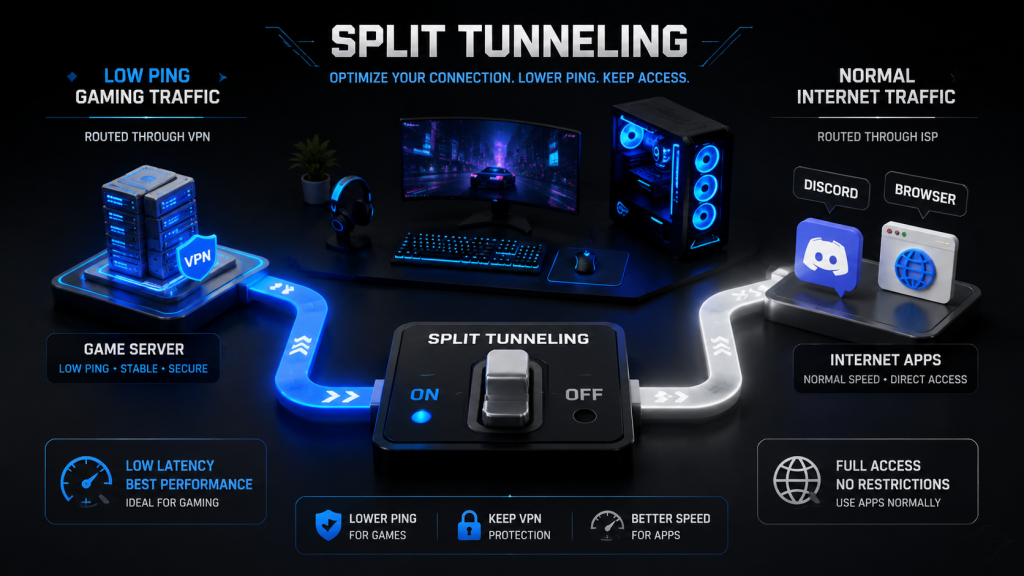
What Is Split Tunneling — And Why Gamers Need It
Split tunneling lets you choose which apps use the VPN and which apps connect directly to the internet. Without it, your entire PC runs through the VPN — browser, Discord, game launcher, everything. With it, you can send only your game traffic through the VPN tunnel while Discord, Chrome, and your game launcher stay on your normal connection.
So why does split tunneling matter for gaming? Here are three reasons:
- Lower ping. When you route only the game through a nearby VPN server, your ISP might take a better path to the game server than the default route. Discord and other apps do not add overhead to the VPN tunnel.
- No DNS conflicts. Some games check your DNS location to verify your region. Split tunneling prevents the VPN’s DNS from interfering with apps you exclude.
- Fewer anti-cheat triggers. Anti-cheat systems like RICOCHET and BattlEye scan for VPN drivers. If only your game uses the VPN, the anti-cheat sees a cleaner network environment.
The trade-off: split tunneling requires manual setup per app. One more thing to watch — some VPNs, notably NordVPN, may still leak DNS through the tunnel even for excluded apps, as we will discuss below.
VPN Protocols for Gaming — Which One Gives You the Lowest Ping
Before you set up split tunneling, pick the right VPN protocol. The protocol determines how much latency your VPN adds on top of your baseline ping.
Protocol Comparison — Independent Benchmarks
| Protocol | Added Latency Overhead | Connection Time | CPU Usage | Gaming Verdict |
|---|---|---|---|---|
| WireGuard / NordLynx | 2–4ms | ~1 second | Minimal | Best overall |
| Lightway (ExpressVPN) | 3–5ms | Under 2 seconds | Minimal | Best for ExpressVPN users |
| OpenVPN UDP | 10–15ms | Several seconds | Moderate | Acceptable |
| OpenVPN TCP | 30ms+ | Slowest | High | Avoid for gaming |
WireGuard and its variants (NordLynx from NordVPN, and Lightway from ExpressVPN) add only 2–5ms of overhead. OpenVPN UDP adds 10–15ms. OpenVPN TCP can add 30ms or more — never use TCP for gaming. The TCP-over-TCP problem means that a single dropped packet triggers retransmission at both layers, causing latency spikes.
Australian VPN Speed Test (2026)
An independent test from Australian VPN measured real-world ping across six major VPNs:
| VPN | Protocol | Ping to Server |
|---|---|---|
| NordVPN | NordLynx | 5ms |
| ExpressVPN | Lightway | 7ms |
| Surfshark | WireGuard | 8ms |
| PIA | WireGuard | 9ms |
| CyberGhost | WireGuard | 11ms |
| IPVanish | WireGuard | 13ms |
Source: Australian VPN Speed Test 2026
Bottom line: NordVPN users should switch to NordLynx. ExpressVPN users get the best results with Lightway. For Surfshark and all other VPNs, WireGuard is the right choice. These three protocols are the current standard for gaming VPN performance.
One caveat: WireGuard is UDP-only. Lightway supports both UDP and TCP, which gives it a slight edge on networks that block UDP traffic.
How to Set Up Split Tunneling on NordVPN (Step by Step)
🔗 Get NordVPN here (75% off + 3 months free)
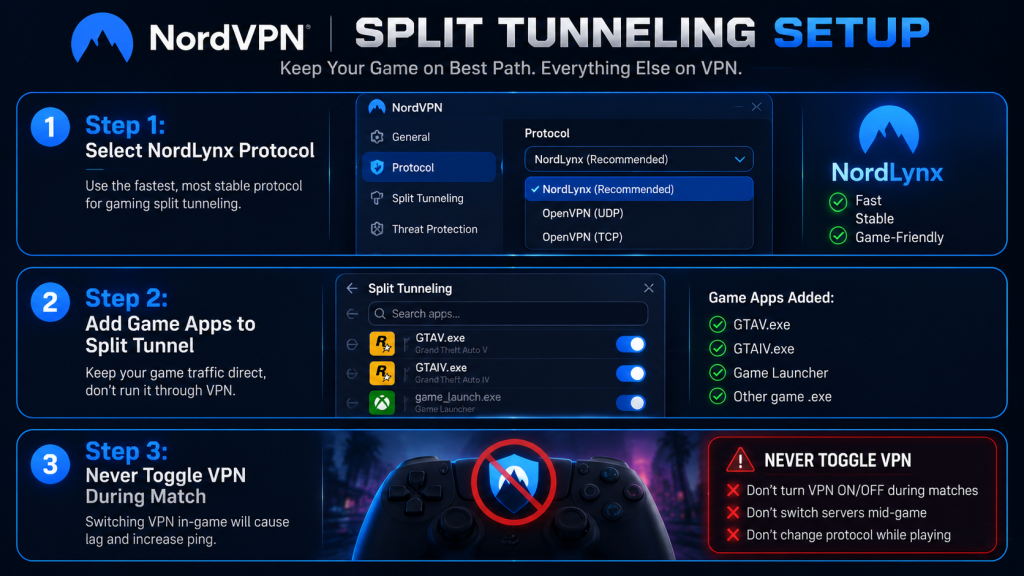
NordVPN calls its split tunneling feature simply “Split Tunneling.” It is available on Windows 7/8.1/10/11 and Android, but not on macOS or iOS.
Step 1: Open the NordVPN app and click the gear icon (Settings) in the bottom-left corner.
Next, Step 2: Select “Split Tunneling” from the settings menu on the left side.
Step 3: Toggle the feature ON at the top.
Then Step 4: Click “Add apps” (shows currently running applications) or “Browse apps” to find your game’s .exe file manually.
Now Step 5: Choose your mode:
- “Disable VPN for selected apps” — the game bypasses the VPN (use this if you want everything else to use the VPN).
- “Enable VPN for selected apps” — only the game uses the VPN (use this to route only your game through the tunnel).
Step 6: Click “Add selected” to confirm.
Important NordVPN caveat: Multiple users on the LinusTechTips forum reported that even with split tunneling enabled, NordVPN’s DNS servers may still handle DNS requests for excluded apps. This means your game might still appear to connect from a VPN IP for DNS lookups. In practice, some games detect this and still flag your connection as VPN traffic, even with the game .exe excluded. Also worth knowing: any game that uses multiple executables (launcher + main game + anti-cheat service) requires you to exclude every single one — missing one can break the tunnel.
Source: NordVPN — What is Split Tunneling
How to Set Up Split Tunneling on Surfshark (Step by Step)
Surfshark calls its split tunneling “Bypasser.” It is available on Windows and Android. Like NordVPN, it does not work on macOS or iOS.
Step 1: Connect to a VPN server first — Bypasser requires an active VPN connection before you can configure it.
Then Step 2: Go to Settings > VPN Settings > Bypasser.
After that, Step 3: Toggle Bypasser ON.
Step 4: Choose your mode:
- “Bypass VPN” — selected apps skip the VPN and connect directly (best for excluding a game from the VPN).
- “Route via VPN” — only selected apps use the VPN (best for routing only your game through the tunnel).
Step 5: Click “Select apps” and check the box next to your game. If the game does not appear in the list, click “Add apps” and find the .exe file manually.
Step 6: Optionally, add specific websites or IP addresses to bypass or route.
Step 7: Disconnect and reconnect to the VPN — Bypasser rules only take effect after you reconnect.
Surfshark’s Bypasser gets better user reports than NordVPN’s split tunneling for gaming. Users on the Dota 2 and Path of Exile forums report fewer DNS leak issues. What’s more, Surfshark’s WireGuard implementation produced the lowest ping (47ms EU West, 43ms EU East) in independent Dota 2 benchmarks — beating both NordVPN and ExpressVPN.
Source: Surfshark — How to Use Bypasser for Windows
How to Set Up Split Tunneling on ExpressVPN (Step by Step)
ExpressVPN calls the feature simply “Split Tunneling.” After years of only supporting it on Windows and routers, ExpressVPN finally added macOS support in late 2025 through its new Qt-based beta app.
First, Step 1: Disconnect from the VPN — ExpressVPN requires you to be disconnected before changing split tunneling settings.
Next, Step 2: Click the hamburger menu (three lines in the top-left corner) > Options (or Settings).
Then, Step 3: Under the General tab, find Split Tunneling and check “Manage connection on a per-app basis.”
Step 4: Click Settings next to that option. Choose one of three modes:
- “All apps use the VPN” — split tunneling off (default).
- “Do not allow selected apps to use the VPN” — exclude mode (best for keeping your game on direct internet).
- “Only allow selected apps to use the VPN” — include mode (best for routing only your game through the VPN).
Step 5: Click the + button or “Add Another App” to browse for your game’s .exe file.
Step 6: Click OK > OK to save. Reconnect to the VPN.
ExpressVPN’s Lightway protocol has a subtle advantage for gaming: it supports both UDP and TCP, unlike WireGuard which is UDP-only. If your network blocks UDP traffic (some university and office networks do), Lightway-TCP will work when WireGuard will not. TCP adds a few milliseconds of overhead, but it is far better than no connection at all.
Source: ExpressVPN — Split Tunneling Feature
Real Ping Data — What a VPN Actually Does to Your Game’s Latency
The most common question I see on gaming forums is: “Will a VPN lower my ping?” To be honest, the answer depends entirely on your ISP’s routing.
When a VPN Lowers Ping
If your ISP takes a bad route to the game server — bouncing through congested nodes or taking a longer physical path — a VPN can give you a better route by connecting to a server closer to the game’s data center. Here is what independent benchmarks found:
| Game | Baseline Ping | With VPN | Change | Source |
|---|---|---|---|---|
| CS2 (Turkey to EU) | 45ms | 25ms | -20ms (42%) | ExitLag / BlurBusters forum |
| Rainbow Six Siege | 55ms | 41ms | -14ms (25%) | WTFast 800Mbps fiber test |
| Warzone | 49ms | 45ms | -4ms + zero packet loss | WTFast benchmark |
| Dota 2 (EU West) | 53ms | 47ms (Surfshark) | -6ms | VPNxd benchmark |
| Valorant | 45ms | 41ms (WTFast) | -4ms | Games Catalogue |
These numbers come from independent testers, not from VPN companies. The 42% reduction for CS2 from Turkey to EU servers came from a forum user who documented their before-and-after results on BlurBusters. The Rainbow Six Siege improvement of 14ms represents a real competitive advantage — at high ranks, even 10ms changes how fast you see an opponent peek a corner.
When a VPN Increases Ping
Not every game benefits. In the same WTFast benchmark:
| Game | Baseline | With VPN | Change |
|---|---|---|---|
| Apex Legends | 57ms | 70ms | +13ms (worse) |
| CS2 | 39ms | 41ms | +2ms (worse) |
| Fortnite | 42ms | 40ms | -2ms (marginal) |
The Apex Legends result is a genuine outlier — 13ms worse. This happens because Apex uses multiple server connections simultaneously (game server + EA account server + respawn beacon server), and routing all of them through a single VPN tunnel creates a bottleneck. The CS2 result shows a simpler truth: if your ISP already has good routing to Valve’s servers, a VPN adds overhead without any benefit.
The Physics Limit
No VPN can beat the speed of light. If you live in Cape Town and connect to a London game server, the physical fiber distance imposes roughly 100ms of unavoidable latency. The best a VPN can do is eliminate unnecessary detours — it cannot make light travel faster. South African gamers in a MyBroadband forum test shaved 15–25ms off a ~180ms baseline by using a VPN with better transatlantic routing, but they could not get below ~155ms.
Source: MyBroadband — VPN Gaming Ping Test
Disclosure: This post contains affiliate links. If you buy through these links, we may earn a commission at no extra cost to you. As an Amazon Associate we earn from qualifying purchases. Gaming Routers | Ethernet Cables | Network Switches
Games Where You Should NEVER Use a VPN
I covered the full game-by-game VPN ban risk list in our previous guide. But for split tunneling specifically, some games have documented technical failures — even if a ban is not the issue.
Valorant — VAN Errors and 120-Day HWID Bans
Riot Vanguard is the most aggressive anti-cheat in gaming. It runs at kernel level and starts before Windows. When you use split tunneling with Valorant, Vanguard detects the IP mismatch between your non-VPN authentication and your VPN-routed gameplay. This triggers a cascade of errors:
- VAN 84 — Connection failure from VPN/proxy interference with Vanguard’s secure handshake.
- VAN 5 — Session conflict from IP change mid-match.
- VAN 152 — Hardware ID ban. False positives from VPN use last approximately 120 days (4 months).
A BlurBusters forum user documented this in February 2025: they used ExpressVPN split tunneling with Valorant, and the game disconnected them after 3–4 minutes with VAN 84, VAN 5, and VAN -102 errors in sequence. The IP mismatch between Valorant’s authentication session (non-VPN) and game traffic (VPN) was enough to trigger Vanguard.
Riot’s official support page lists “Disable VPN/proxy” as the first troubleshooting step for VAN errors. Their position is clear: Vanguard and VPNs do not mix.
Source: Appuals — VAN 152 HWID Ban
Deadlock — Infinite Loading Screen
Unfortunately, split tunneling breaks Deadlock entirely. Multiple users on the PlayDeadlock forums reported that enabling split tunneling causes an infinite black loading screen at launch. The game’s engine attempts to host a local lobby and fails because of how the VPN kernel driver handles IPv4-mapped IPv6 addresses. A partial workaround exists: press F7 at the black screen, type sv_cheats 1 ; restart in console, and the game may force-load into the lobby. However, after the August 18, 2025 Deadlock update, users reported that Mullvad’s split tunneling stopped working completely.
Source: PlayDeadlock Forums — Split Tunnel Issue
Battlefield 6 — Anti-Cheat Blocks All Exclusions
Battlefield 6’s anti-cheat interacts with many different Windows system binaries, not just the game’s main .exe. Steam Community users report that even after excluding every EA-related executable from the VPN, the anti-cheat still detected the VPN driver and blocked the connection. Split tunneling is effectively impossible for Battlefield 6 because you cannot identify every binary the anti-cheat touches.
Space Station 14 — Server-Level VPN Block
This game actively blocks VPN connections at the server level. If you try to connect through a VPN, you get the message: “You are connecting through a datacenter or VPN. For administrative reasons we do not allow VPN connections to play.” Split tunneling does not help because the server checks the IP of the incoming game connection — not whether other apps are using the VPN.
The general rule: If a game uses kernel-level anti-cheat (Vanguard, RICOCHET, BattlEye, EAC), be extremely careful with split tunneling. These systems can see your VPN driver regardless of which apps you route through it. A better strategy for these games is to use a dedicated IP address — which we cover below.
Dedicated IP — Is It Worth an Extra $4/Month for Gaming?
A dedicated IP address belongs to you alone. Unlike shared VPN IPs used by thousands of people simultaneously, a dedicated IP has no history of abuse, appears on fewer blacklists, and looks like a normal residential or business connection to game servers.
Pricing Comparison (2026)
| VPN | Dedicated IP Add-on | Total Monthly (2-year plan) | Locations |
|---|---|---|---|
| Surfshark | $3.75/mo | ~$5.75/mo | 20 locations, 14 countries |
| NordVPN | $4.19–$8.99/mo | ~$7.58/mo | 46 locations, 28 countries |
| ExpressVPN | Included in Pro tier | ~$7.49/mo | 30 locations, 22 countries |
Surfshark offers the cheapest dedicated IP at a flat $3.75/mo add-on regardless of plan length. NordVPN gives you the most server locations (46 across 28 countries) and the lowest ping (87ms in dedicated IP benchmarks), but your total cost reaches about $7.58/mo on the 2-year plan. ExpressVPN bundles the dedicated IP into its Pro tier at $7.49/mo with no separate add-on.
Source: CyberNews — Best Dedicated IP VPNs 2026
When a Dedicated IP Helps
- Games that shadow-ban shared VPN IPs. CoD Warzone’s RICOCHET system aggressively shadow-bans players connecting from known VPN IP ranges. A dedicated IP avoids those ranges entirely.
- MMOs with region locks. Lost Ark and some Asian MMOs check IP location. A dedicated IP in the right country bypasses this while a shared VPN IP often triggers a block.
- Account security. Some games (FFXIV, Steam) trigger security lockouts when they see logins from multiple IPs. A dedicated IP means your IP never changes.
When It Does Not Help
- Kernel-level anti-cheat. Vanguard, BattlEye, and EAC do not care whether your IP is shared or dedicated — they scan for VPN drivers, not IP reputation. A dedicated IP will not protect you from VAN 152 in Valorant.
- Games that explicitly ban VPNs. If a game’s ToS says “no VPNs,” a dedicated IP does not change the fact that you are using one. The game can still detect the VPN through other means.
For most gamers, a dedicated IP is overkill. But if you play CoD Warzone, Lost Ark, or any MMO with strict IP region checks, the extra $4/month is cheap insurance against shadow bans and account lockouts.
Obfuscated Servers — What They Actually Do (And Don’t Do)
VPN companies market “obfuscated servers” as a way to hide the fact that you are using a VPN. The technology re-wraps VPN traffic to look like normal HTTPS browsing — useful in countries that block VPNs (China, Russia, UAE) or on restrictive networks (universities, workplaces). NordVPN calls them “Obfuscated Servers,” Surfshark calls it “Camouflage Mode,” and ExpressVPN bakes obfuscation into the Lightway protocol itself.
However, a 2025 study from the Technical University of Munich tested major VPN providers and concluded:
“None of the VPN providers are able to obfuscate VPN traffic and make VPN usage invisible.”
The researchers found that packet length analysis could still identify obfuscated VPN traffic because VPN packets have characteristic size patterns that HTTPS browsing does not. To put it simply: obfuscation makes your VPN traffic harder to spot, but not impossible.
Source: TU Munich — VPN Obfuscation Study 2025
Gaming Impact
Obfuscation adds processing overhead — your VPN has to encrypt, then re-wrap, then re-encrypt every packet. This adds latency. For gaming, only enable obfuscation if your network actively blocks VPN connections. Otherwise, leave it off.
Here’s the real problem for NordVPN users: obfuscated servers only work with OpenVPN (TCP or UDP), not with NordLynx. Since OpenVPN already adds 10–15ms of overhead compared to NordLynx’s 2–4ms, using obfuscated servers means accepting at least 10ms of extra ping. In practice, that is the difference between a 25ms connection and a 35ms one — noticeable in competitive shooters.
Gaming VPN Setup Checklist
Here is a quick checklist you can follow every time you set up a VPN for a new game:
- Pick the right protocol. NordLynx (NordVPN), Lightway (ExpressVPN), or WireGuard (everything else). Never OpenVPN TCP.
- Enable split tunneling. Exclude Discord, Chrome, and your game launcher from the VPN. Route only the game through the tunnel.
- Check the game’s VPN risk. Read our VPN ban risk list. If your game is in the high-risk tier, reconsider.
- Choose the closest server to the game’s data center. Not the closest server to your physical location. For CS2, pick a server near Valve’s EU North or US East data centers. For WoW, pick one near Blizzard’s server farm in Chicago or Frankfurt.
- Run a ping test before and after. Use
pingin Command Prompt or a tool like PingPlotter. Write down your baseline, then test with the VPN on. If ping goes up by more than 5ms, try a different server. - Disable obfuscation unless you need it. It adds latency. Only enable it on restrictive networks.
- Never toggle the VPN during a match. Close the game, change VPN settings, restart the game. IP changes mid-match are the number one trigger for both anti-cheat flags and game disconnections.
The Bottom Line
Learning how to set up VPN for gaming with split tunneling is not complicated — it takes about 5 minutes per VPN — but doing it wrong can get you disconnected, flagged, or in the worst case, banned. The three rules that matter: use WireGuard or Lightway (never OpenVPN TCP), enable split tunneling so only your game goes through the VPN, and never touch the VPN toggle while a match is running.
For most gamers, the real question is not how to set up a VPN but whether you should. When your ISP already routes cleanly to your game servers and your ping sits under 30ms, a VPN will probably make things worse. But if you deal with ISP throttling, bad routing, or DDoS attacks, a properly configured VPN can cut your ping by 10–25ms — which matters at any rank above Gold.
Still deciding which VPN to buy? Our best VPN for gaming low ping comparison breaks down pricing, server counts, and protocol benchmarks. And if you want to know which games punish VPN use, the game-by-game VPN ban list has you covered.