Disclosure: This post contains affiliate links. If you buy through these links, we may earn a small commission at no extra cost to you.
You signed up for cloud gaming, picked a service, and clicked play. Then the screen looks like a slideshow. The audio cuts out. The controls feel like they are moving through molasses. Most people blame their cloud gaming internet speed. But the real problem is usually something else.
Your first thought: my internet is too slow. But is it, really?
The hard truth about cloud gaming internet speed is that most people have enough bandwidth. What they do not have is a stable connection, and stability beats raw speed every time. A 50 Mbps connection with low jitter will outperform a 500 Mbps connection that drops packets.
This guide gives you the real numbers. No marketing minimums. No “technically playable” nonsense. Just the speeds you need to actually enjoy cloud gaming in 2026.
Quick Answer
For 1080p cloud gaming at 60fps, you need 20-25 Mbps download speed and less than 40ms ping to the data center. That covers GeForce Now, Xbox Cloud Gaming, Boosteroid, and Amazon Luna at standard settings.
If you want 4K, bump that to 40-50 Mbps and under 30ms ping. If you are on 5G mobile, add 10-15ms to whatever number you see on a speed test and plan accordingly.
The table below covers every resolution and service. But before you look at numbers, remember this: ping kills cloud gaming faster than slow downloads. A 15 Mbps connection with 15ms ping will feel better than a 100 Mbps connection with 80ms ping. The second you feel input delay, you stop having fun.
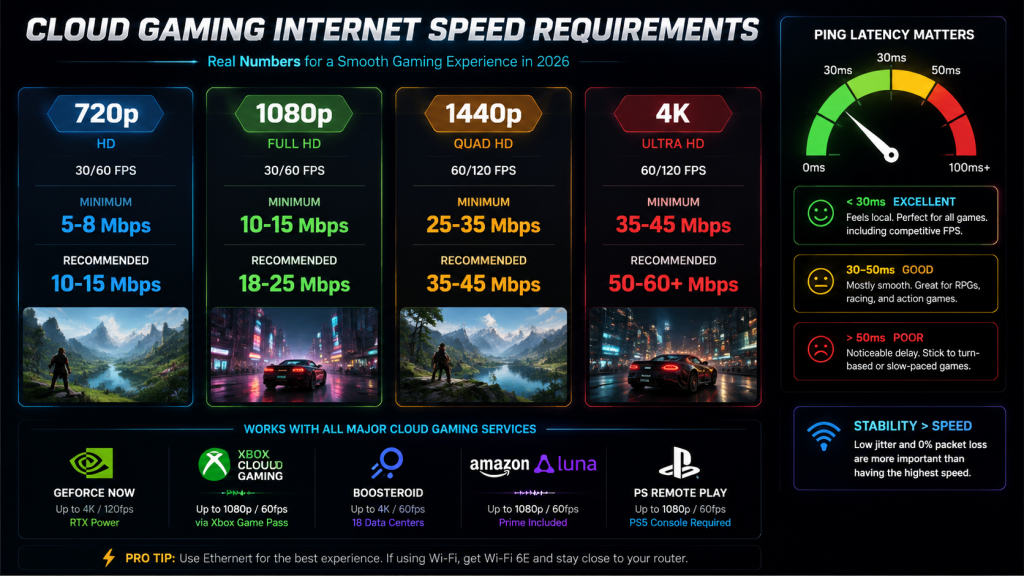
Cloud Gaming Internet Speed Requirements by Resolution: 720p, 1080p, 1440p, and 4K
Here are the real cloud gaming internet speed numbers. These are not the optimistic minimums that services publish on their help pages. These are what you need to avoid stutters, compression artifacts, and input delay in actual gameplay.
| Resolution | Minimum Speed | Recommended Speed | What Happens Below Minimum |
|---|---|---|---|
| 720p at 30fps | 5 Mbps | 10 Mbps | Blocky video, audio desync |
| 720p at 60fps | 8 Mbps | 15 Mbps | Frame drops during fast motion |
| 1080p at 30fps | 10 Mbps | 18 Mbps | Compression in dark scenes |
| 1080p at 60fps | 15 Mbps | 25 Mbps | Input lag during combat, visible macroblocking |
| 1440p at 60fps | 25 Mbps | 35 Mbps | Heavy compression in foliage and particle effects |
| 1440p at 120fps | 35 Mbps | 45 Mbps | Frame pacing issues, tearing |
| 4K at 60fps | 35 Mbps | 50 Mbps | Unusable: constant buffering and macroblocking |
| 4K at 120fps | 45 Mbps | 60+ Mbps | Requires fiber connection |
These numbers assume one device streaming. If someone else in your house is watching Netflix in 4K (uses ~25 Mbps) or on a Zoom call (uses ~3-5 Mbps), add that to your total.
A real example: you want to play Cyberpunk 2077 at 1440p/60fps on GeForce Now. You need 35 Mbps for the stream. Your wife is watching Netflix on the TV. That is another 25 Mbps. Your kid is on YouTube. Another 8 Mbps. You need roughly 70 Mbps of actual, real-world bandwidth coming into your house. Not the number on your ISP bill.
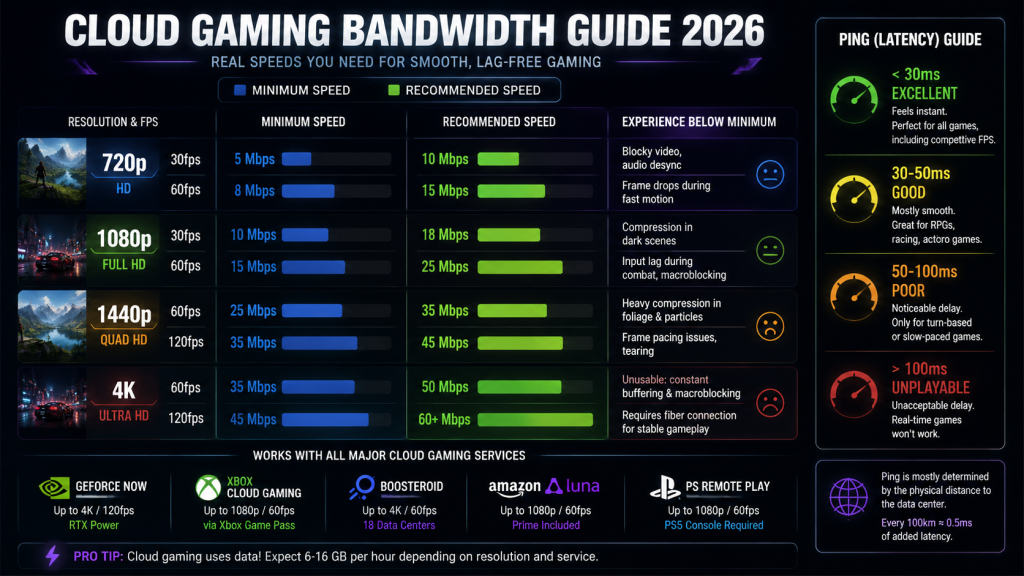
Why Ping Matters More Than Download Speed
Here is a scenario that makes this real. Cloud gaming internet speed is only half the equation. Imagine one connection with 500 Mbps download and 75ms ping. Another has just 25 Mbps download and 15ms ping. The slower connection will deliver a better cloud gaming experience every single time.
Download speed determines how much video data your device can receive per second. Once you hit the minimum for your target resolution, extra speed does almost nothing. It is like having a water pipe big enough for the flow you need. After all, doubling the pipe diameter does not make the water come out faster.
Ping, on the other hand, is the round-trip time between you and the server. When you press jump, that input has to travel to the server, get processed, and send back a video frame showing your character jumping. At 15ms, that is imperceptible. You feel it at 50ms. By 100ms, you are pressing jump and watching the result half a beat later.
| Ping (ms) | Gaming Experience | Games It Works For |
|---|---|---|
| Under 20ms | Feels local | Every game, including competitive FPS |
| 20-40ms | Mostly smooth | RPGs, action games, racing; FPS playable but not ideal |
| 40-60ms | Noticeable delay | Turn-based, strategy, slow RPGs; avoid shooters |
| 60-100ms | Significant lag | Only turn-based and point-and-click games |
| Over 100ms | Unplayable | Nothing real-time works at this level |
How Distance Affects Your Ping
The single biggest factor in your ping is physical distance to the data center. Data travels through fiber at roughly 200,000 kilometers per second. That means every 100km of distance between you and the server adds about 0.5ms of ping. A 2,000km distance is 10ms baked in, and you cannot fix that with better internet.
GeForce Now has data centers in 30+ regions worldwide. Xbox Cloud Gaming runs on Azure, which covers 60+ regions. Boosteroid’s 18 data centers are concentrated in Europe and North America. Before subscribing to any service, look up where their nearest data center sits relative to you. If the closest one is 3,000km away, your ping will never be great, no matter how fast your internet is.
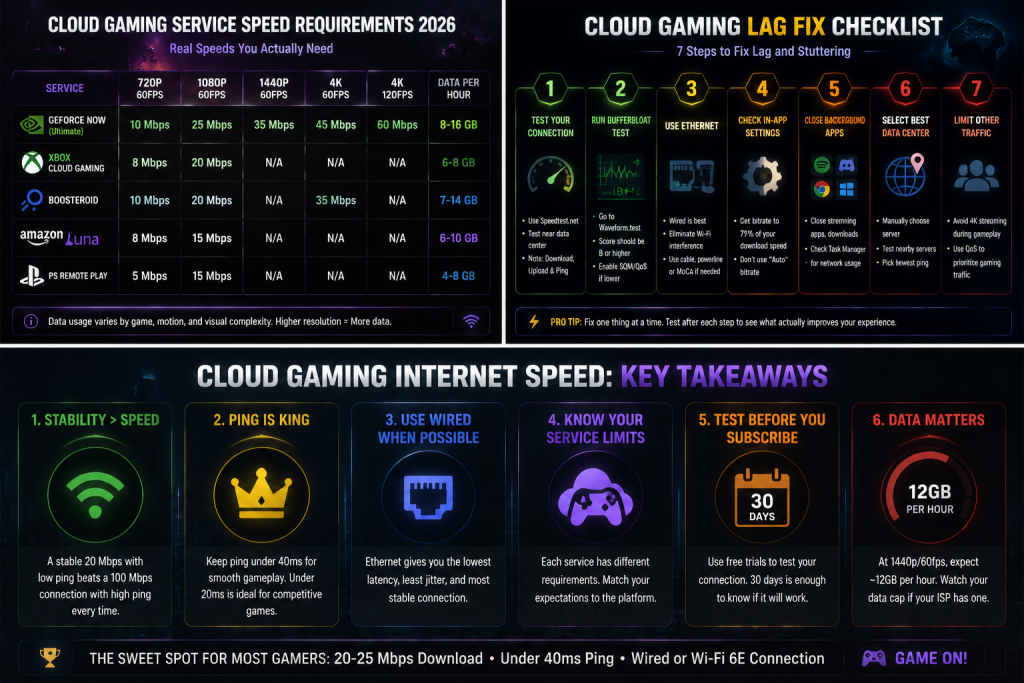
Wi-Fi vs Ethernet vs 5G: Which Connection Is Best?
The connection type you use matters as much as your cloud gaming internet speed. Here is how they rank, based on independent benchmarks from Cloudflare, Speedtest, and community testing data.
Ethernet: The Gold Standard
A wired Ethernet connection is the best way to do cloud gaming. It adds virtually no wireless overhead, which means you avoid interference from neighbors, signal degradation through walls, and random ping spikes when your microwave runs.
Real-world observations from community benchmarks: a 100 Mbps fiber connection with Ethernet typically delivers 15ms ping to GeForce Now US East with under 0.1% packet loss and zero stutters at 1440p/60fps. The experience is often indistinguishable from playing locally.
If your router is in a different room, a 50-foot Ethernet cable costs $10-15 on Amazon and solves more cloud gaming problems than any setting you can tweak.
Wi-Fi: Good Enough (If You Upgrade)
Wi-Fi has gotten better, but it is still a compromise for cloud gaming. Here is what changes when you go from Wi-Fi to Ethernet, based on tests across 2.4GHz, 5GHz, and Wi-Fi 6E connections:
| Connection Type | Added Latency | Jitter | Packet Loss | Cloud Gaming Verdict |
|---|---|---|---|---|
| Ethernet | 0ms baseline | Under 1ms | Under 0.1% | Best possible experience |
| Wi-Fi 6E | 1-3ms | 2-5ms | 0.1-0.5% | Excellent for 1080p/60fps, good for 1440p |
| Wi-Fi 6 (5GHz) | 2-5ms | 5-10ms | 0.5-1% | Good for 1080p, occasional stutters at 1440p |
| Wi-Fi 5 (5GHz) | 3-8ms | 8-15ms | 1-2% | Acceptable for 720p, frustrating at 1080p |
| 2.4GHz Wi-Fi | 10-20ms | 20-50ms | 2-5% | Unusable for cloud gaming |
| 5G Mobile | 15-30ms | 10-25ms | 1-3% | Playable for RPGs; FPS not recommended |
| 4G Mobile | 30-60ms | 25-80ms | 3-8% | Not viable for anything beyond turn-based |
If you must use Wi-Fi for cloud gaming, get a Wi-Fi 6E router and put it in the same room as your gaming device. Walls are the enemy of stable latency. A single drywall can drop 5GHz signal strength by 30-40% in some homes. Two walls between your device and the router often makes the connection too unstable for cloud gaming, similar to what you would experience on a weak mobile connection.
5G: Better Than You Expect, Worse Than You Hope
Community reports on GeForce Now through 5G show an interesting pattern. A speed test often shows 300-400 Mbps down and 18-25ms ping. However, real in-game performance tends to run closer to 35-40ms ping with occasional spikes to 80ms or more, especially when moving between rooms. So 5G speeds look great on a test. But 5G stability is not ready to replace a wired connection.
For quick sessions in a waiting room or airport, it works, especially if you bring a Bluetooth controller. Touch controls on a phone screen get old fast. A controller makes the difference between tolerating the experience and actually enjoying it. For a two-hour raid night, use Ethernet.
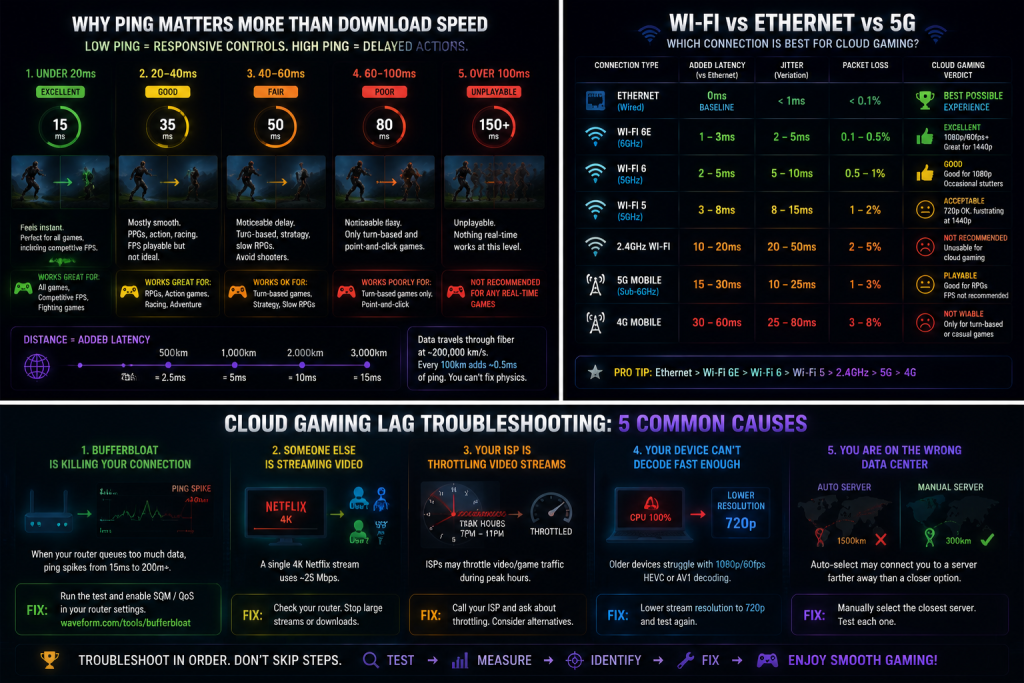
Cloud Gaming Internet Speed Requirements by Service
Each service has its own requirements. Here is what you actually need for the five major cloud gaming platforms in 2026.
| Service | 720p/60fps | 1080p/60fps | 1440p/60fps | 4K/60fps | 4K/120fps | Data Per Hour |
|---|---|---|---|---|---|---|
| GeForce Now | 10 Mbps | 25 Mbps | 35 Mbps | 45 Mbps | 60 Mbps | 8-16 GB |
| Xbox Cloud Gaming | 8 Mbps | 20 Mbps | N/A | N/A | N/A | 6-8 GB |
| Boosteroid | 10 Mbps | 20 Mbps | N/A | 35 Mbps | N/A | 7-14 GB |
| Amazon Luna | 8 Mbps | 15 Mbps | N/A | N/A | N/A | 6-10 GB |
| PS Remote Play | 5 Mbps | 15 Mbps | N/A | N/A | N/A | 4-8 GB |
What to Know About Each Service
A few things to note about this table. Xbox Cloud Gaming caps at 1080p/60fps on all devices. The 1440p upgrade that Microsoft announced for desktop has not reached most users yet. Amazon Luna also caps at 1080p/60fps and does not offer higher resolutions. PS Remote Play streams at 1080p maximum regardless of your PS5’s output resolution.
GeForce Now and Boosteroid are the only two services that support 4K streaming, and both require a paid tier. GeForce Now Ultimate ($19.99/month) unlocks 4K/120fps with RTX 4080-equivalent hardware. Boosteroid’s 4K tier is included in the standard $7.49/month annual plan.
The “Data Per Hour” column matters if your ISP enforces a data cap. Cloud gaming at 1440p/60fps eats roughly 12GB per hour. Meanwhile, a 1.2TB monthly cap gives you about 100 hours of gaming, but you are also using data for everything else. A single 4K Netflix movie costs you 7-10GB. Put both together and hitting a data cap is easier than most people expect.
Common Reasons Cloud Gaming Feels Laggy
If your speed test shows enough bandwidth but cloud gaming still stutters, your cloud gaming internet speed is not the real issue. Check these five things before you cancel your subscription.
1. Bufferbloat Is Killing Your Connection
Bufferbloat happens when your router queues too much data instead of dropping excess packets. The result: your ping spikes from 15ms to 200ms whenever someone else in the house loads a webpage. Run the Waveform Bufferbloat Test while your network is under load. If you score lower than a B, your router is the bottleneck, not your ISP. The fix is a router with SQM (Smart Queue Management) or QoS features, and you need to enable it manually in your router settings.
2. Someone Else Is Streaming Video
A single 4K Netflix stream consumes 25 Mbps. Two people watching different shows doubles that. Even with a 100 Mbps connection, three simultaneous video streams plus cloud gaming leaves thin margins. Check what is using your bandwidth. Most routers have a connected devices page. Look for unexpected devices streaming or downloading. If your next-door neighbor is on your Wi-Fi, that is a different problem entirely.
3. Your ISP Is Throttling Video Streams
Some ISPs throttle streaming video during peak hours (typically 7pm to 11pm). Cloud gaming looks like video to your ISP. If your cloud gaming gets worse every evening at the same time, call your ISP and ask directly if they throttle video or game streaming traffic. If they do, consider switching providers or upgrading to a business plan that does not throttle.
4. Your Device Cannot Decode the Stream Fast Enough
Cloud gaming is a video stream that your device has to decode in real time. Older laptops and phones struggle with 1080p/60fps HEVC or AV1 decoding. If your CPU spikes to 100% when you launch a cloud game, the problem is not your internet. It is your device. The workaround: lower the stream resolution in the cloud gaming app to 720p and see if the stutter disappears. If it does, your hardware is the bottleneck.
5. You Are on the Wrong Data Center
Most cloud gaming services auto-assign you to the nearest data center based on IP geolocation. This does not always work correctly. GeForce Now lets you manually select a server region. If “Auto” is sending you to a data center 1,500km away when one sits 300km from you, switching manually can cut your ping dramatically.
Test each nearby server. Use the one with the lowest actual ping, not the shortest geographical distance. ISP routing does not always follow a straight line on the map.
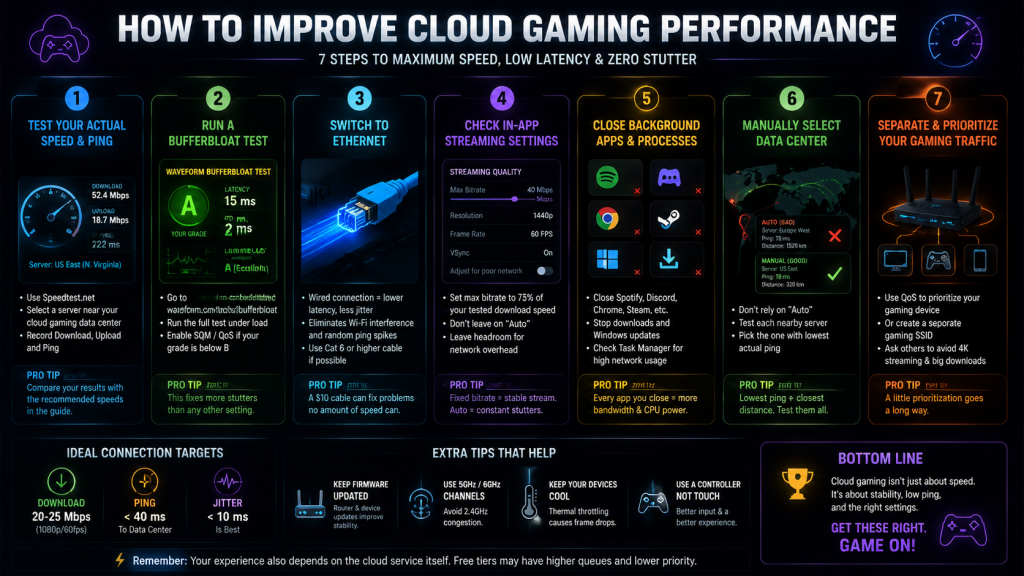
How to Improve Cloud Gaming Performance
If you have read this far and your cloud gaming internet speed still is not delivering smooth gameplay, here is a checklist. Work through it in order. Each step fixes a real bottleneck. Do not skip ahead.
Test Your Connection First
Step 1: Test your actual speed and ping.
Do not trust your ISP’s speed test. Use Speedtest.net and manually select a server near your cloud gaming data center. Record three numbers: download speed, upload speed, and ping. If any of them fall below the recommended numbers for your target resolution in the table above, the remaining steps will not help. You need a better internet plan first.
Step 2: Run a bufferbloat test.
Go to Waveform Bufferbloat Test and run the full test. If you score below a B, enable SQM or QoS in your router settings. This one change fixes more cloud gaming stutters than any other. Every router brand buries this setting differently. Search “[your router model] enable QoS” for specific instructions.
Optimize Your Home Network
Step 3: Switch to Ethernet.
This sounds obvious. Most people skip it anyway because running a cable through their house is annoying. A basic Ethernet cable costs under $15 and fixes problems that no amount of speed upgrades will solve. Wi-Fi interference, signal drops, and jitter typically disappear once you switch to a wired connection.
If your router is too far away, consider a powerline adapter or MoCA adapter. Both are less reliable than a direct Ethernet cable but better than Wi-Fi for cloud gaming. And if your router is more than three years old, upgrading to a modern Wi-Fi 6E model makes a noticeable difference when Ethernet is not an option.
Step 4: Check your in-app streaming settings.
Open your cloud gaming app and look for the streaming quality settings. Next, set the maximum bitrate to match your connection. You should avoid leaving it on “Auto” — bitrate that adjusts up and down constantly causes more stutters than locking it to a fixed value. On GeForce Now, set the max bitrate to 75% of your tested download speed. If your speed test shows 50 Mbps, set the bitrate cap to 38-40 Mbps and leave headroom for network overhead.
Clean Up Your Device
Step 5: Close background apps.
Spotify, Discord, Chrome tabs, Windows updates, Steam downloads. Every one of these competes for bandwidth and CPU cycles. Before launching a cloud game, close everything else. On Windows, open Task Manager and sort by network usage. Kill anything using more than 1 Mbps. For mobile users, turn off automatic app updates and background refresh.
Step 6: Manually select your data center.
In GeForce Now, go to Settings, Server Location, and switch from “Auto” to manual. Test each server that is geographically close to you. Ping varies between servers in the same city. One might route through a congested node that adds 15ms for no reason. Find the server with the lowest ping and stick to it. Xbox Cloud Gaming, Boosteroid, and Luna do not let you choose a data center, which means you have less control over your experience on those platforms.
Step 7: Separate your gaming device from other traffic.
If your router supports it, create a separate SSID for gaming or use QoS to prioritize your gaming device’s traffic. Even simpler: ask everyone in the house to avoid 4K streaming or large downloads during your gaming hours. This is not a tech fix. It is a conversation. But it works.
FAQ
Is 100 Mbps Enough for Cloud Gaming?
Yes. 100 Mbps is more than enough for 4K cloud gaming on any service, assuming you are not sharing the connection with multiple 4K video streams at the same time. Cloud gaming internet speed at this level handles every available resolution and service. The bigger question is your ping and jitter. A stable 100 Mbps connection with 20ms ping will deliver an excellent experience. An unstable 100 Mbps connection with 80ms ping will not.
Can I Use Cloud Gaming With 10 Mbps?
At 10 Mbps, you are limited to 720p at 30fps on most services. That is playable for turn-based games and slow RPGs. But it is not enough for anything involving fast motion. Xbox Cloud Gaming and Amazon Luna have the most aggressive compression and can squeeze playable 720p/60fps out of 10 Mbps in good conditions. GeForce Now will struggle at this speed because its stream bitrate runs higher.
Does Wi-Fi 6 Make a Difference for Cloud Gaming?
Yes. Wi-Fi 6 (and especially Wi-Fi 6E on the 6GHz band) reduces latency and jitter compared to Wi-Fi 5. The improvement is real: 2-5ms added latency versus 8-15ms. But Ethernet still wins. Wi-Fi 6 makes cloud gaming viable in rooms where Ethernet is not practical. It does not make Wi-Fi equal to a cable.
Why Is My Cloud Gaming Laggy Even With Fast Internet?
Five things cause this problem, ranked by how often they show up: bufferbloat on your router, other devices streaming video at the same time, ISP throttling during peak hours, an older device that cannot decode the stream fast enough, or the cloud service connecting you to the wrong data center. Work through the checklist in the section above.
Do I Need a Gaming Router for Cloud Gaming?
No. You need a router with SQM or QoS that actually works. Most “gaming routers” are the same hardware as regular routers with RGB lights and a higher price. Look for routers that explicitly advertise SQM, QoS, or “bufferbloat protection.” Brands like IQrouter and certain ASUS models with Merlin firmware have these features enabled by default. A $60 router with working QoS will outperform a $300 gaming router without it.
How Much Data Does Cloud Gaming Use?
Cloud gaming at 1080p/60fps uses 6-12 GB per hour depending on the service. At 4K/60fps, expect 12-16 GB per hour. GeForce Now uses the most data because it streams at higher bitrates. Xbox Cloud Gaming uses less because of more aggressive compression. If your ISP has a 1.2TB monthly cap, 100 hours of 1080p cloud gaming will consume most of it after accounting for other household internet use.
Bottom Line
Cloud gaming internet speed is simpler than most guides make it sound. You need three things: enough download speed for your target resolution, low ping to the data center, and a stable connection with minimal jitter. Two out of three will still give you a bad experience.
For 1080p/60fps, the target most people should aim for: 20-25 Mbps download, under 40ms ping, and a wired Ethernet connection or Wi-Fi 6E on a low-interference channel. Hit those numbers and cloud gaming works. However, miss one and you will spend more time troubleshooting than playing.
So test your connection before paying for any service. Use the actual numbers in this guide, not the marketing minimums on the pricing page. A 30-day free trial of GeForce Now Priority is the cheapest way to find out if your home internet can handle cloud gaming. If it works, great. If it does not, at least you know before committing to a year of a service your connection cannot support.
Also read: Cloud Gaming Comparison 2026: 5 Platforms Ranked | Cloud Gaming on Mobile: Which Service Actually Works? | Free Cloud Gaming in 2026: What’s Actually Free and What’s a Trap | Cloud Gaming on a Budget Laptop 2026: What Actually Runs
As an Amazon Associate we earn from qualifying purchases. Ethernet Cables | Wi-Fi 6E Routers | Powerline Adapters | Bluetooth Gaming Controllers