Disclosure: This post contains affiliate links. If you buy through these links, we may earn a small commission at no extra cost to you.
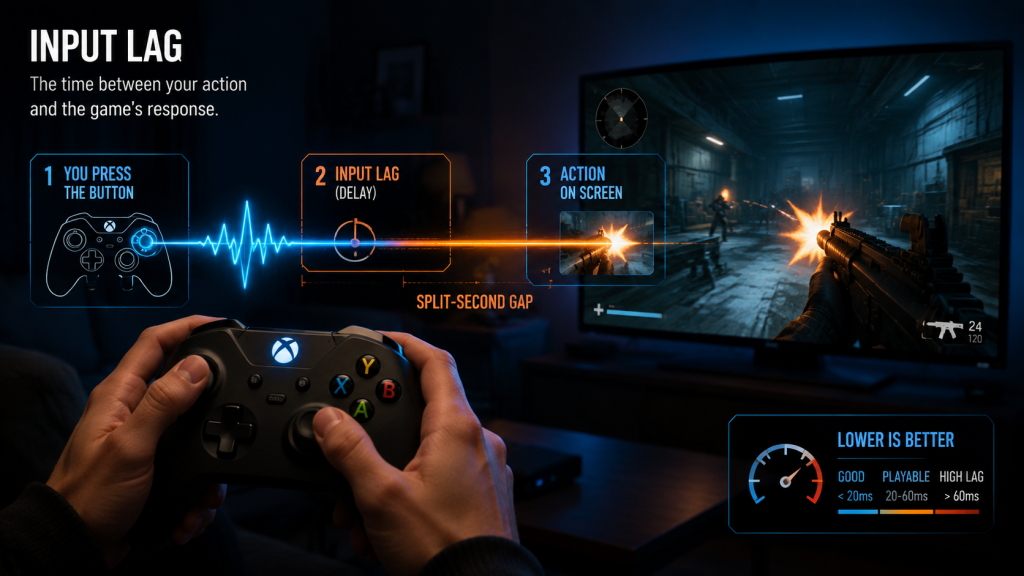
You press the jump button. The character on screen jumps a split second later. That split second is input lag. In cloud gaming specifically, it is the difference between landing the shot and dying mid-air.
Every cloud gaming service adds latency. The question is not whether it exists. The question is how much is acceptable, what causes it, and what you can actually do about it.
This guide covers cloud gaming input lag from every angle: the numbers that matter, the fixes that work, and the settings that make the biggest difference. No vague advice. Instead, specific numbers and specific steps.
Quick Answer: What Is Acceptable Input Lag?
| Total Latency | Verdict | Best For |
|---|---|---|
| Under 30ms | Excellent | Competitive shooters, fighting games |
| 30-50ms | Good | Most multiplayer games |
| 50-80ms | Playable | Single-player, RPG, strategy |
| 80-120ms | Noticeable | Turn-based games only |
| Over 120ms | Bad | Unplayable for anything real-time |
The average cloud gaming session on GeForce NOW Ultimate with a wired connection and a nearby server lands between 25ms and 45ms total latency. On Xbox Cloud Gaming over Wi-Fi with a Bluetooth controller, the number is closer to 55ms to 85ms. Both are playable. However, only one feels close to local.
What Is Input Lag in Cloud Gaming?
Input lag is the total time between pressing a button and seeing the result on screen. On a local console or PC, this is typically 20ms to 40ms, since the signal goes from controller to console to TV, all inside the same room.
Cloud gaming, by contrast, adds extra steps: controller to device, device to router, router to ISP, ISP to data center, data center processes the input, renders the frame, encodes it, sends it back through the same chain in reverse, your device decodes it, your TV displays it. Each step adds milliseconds.
The total round-trip breaks down into four buckets:
| Latency Type | Typical Range | What Affects It |
|---|---|---|
| Controller latency | 2-18ms | Bluetooth version, wired vs wireless |
| Network latency (ping) | 5-60ms | Distance to server, ISP routing |
| Encode/decode latency | 2-8ms | Device processor, codec support |
| Display latency | 2-15ms | TV game mode, monitor refresh rate |
Add them up. In the best-case scenario, total latency lands around 20ms. An average home setup over Wi-Fi with a Bluetooth controller lands between 50ms and 70ms. Meanwhile, a bad setup (old TV, 2.4GHz Wi-Fi, distant server) can push past 120ms.
How Much Latency Is Acceptable by Game Type?
Not all games punish input lag equally. For example, the same 60ms that feels fine in Baldur’s Gate 3 feels broken in Call of Duty.
| Game Type | Max Acceptable Lag | Why |
|---|---|---|
| Competitive FPS (Valorant, CS2, CoD) | Under 40ms | Reaction time wins gunfights |
| Fighting games (Street Fighter, Tekken) | Under 40ms | Frame-perfect inputs matter |
| Racing sims (Forza Motorsport, iRacing) | Under 50ms | Steering correction delay |
| Action RPG (Elden Ring, Cyberpunk) | Under 70ms | Dodge timing matters, not frame-perfect |
| Single-player RPG (Starfield, BG3) | Under 100ms | Turn-based or pause-able |
| Strategy / 4X (Civilization, Age of Empires) | Under 120ms | No real-time penalty for delay |
| Casual / puzzle | Under 150ms | Almost anything works |
The service you pick matters as much as the game you play. GeForce NOW Ultimate with Reflex mode on a wired connection can hit 25ms to 35ms total in ideal conditions, which is competitive-shooter territory. Xbox Cloud Gaming over Wi-Fi, meanwhile, averages 55ms to 80ms, which rules out ranked Valorant but handles Starfield without issue.
For a deeper look at how much internet speed you need, check our cloud gaming internet speed guide. Speed and latency are not the same thing, and the guide explains both.
What Causes Input Lag? (And What You Can Fix)
Four things contribute to cloud gaming input lag. Two of them you can control. The other two, however, you cannot.
1. Network Latency (You Can Improve This)
Network latency is the round-trip time between your device and the cloud gaming server. Every 10ms of ping equals 10ms of input lag. If your ping to the nearest GeForce NOW server is 35ms, that is your baseline. Nothing you do on your device will push total latency below 35ms.
Factors that affect network latency: physical distance to the server, ISP routing quality, Wi-Fi congestion, and whether you use Ethernet or Wi-Fi. In particular, the physical distance to the server sets your latency floor — nothing gets below it. NVIDIA and Microsoft publish their server locations. Check which city is closest to you before subscribing. A user in Dallas on GeForce NOW (server in Dallas) gets 5ms ping. A user in Montana on Xbox Cloud Gaming (nearest server in Seattle) gets 40ms ping. That 35ms gap is geography, not technology.
2. Controller Latency (You Can Fix This)
Bluetooth controllers add latency. The amount depends on the Bluetooth version, the device’s Bluetooth chip, and interference from other wireless devices.
Here are the real numbers. Wired controllers add roughly 1ms. Bluetooth 5.3 controllers add 5ms to 10ms. Bluetooth 4.2 controllers add 12ms to 18ms. A 2.4GHz dongle, meanwhile, sits in between at roughly 2ms to 5ms.
On a Samsung TV from 2024 with Bluetooth 5.3, an Xbox Wireless Controller adds about 8ms. On a budget Android TV box from 2020 with Bluetooth 4.2, however, the same controller adds about 16ms. That 8ms gap is invisible on its own, but combined with cloud streaming latency, every millisecond adds up.
So the fix is straightforward: use a wired controller when possible, or a 2.4GHz controller with a USB dongle. If you must use Bluetooth, make sure your streaming device supports Bluetooth 5.0 or later. Our best cloud gaming controllers guide lists controllers with the lowest wireless latency.
3. Encode/Decode Latency (Limited Control)
The cloud server encodes each frame into a video stream. Your device decodes it. The speed of both steps depends on the hardware at each end.
NVIDIA’s servers encode frames in roughly 2ms to 4ms. Your device decodes them in 2ms to 6ms, depending on the processor and codec. AV1 decoding is faster and uses less bandwidth than H.265, but only newer devices support AV1 hardware decoding. The Google TV Streamer, NVIDIA Shield TV Pro, and recent mini PCs all support AV1. Older Fire TV Sticks and budget Android boxes do not.
What you can do: pick a streaming device that supports AV1 hardware decoding. The difference is only 2ms to 4ms, but combined with other savings, it adds up. Our best cloud gaming devices guide flags which devices support AV1.
4. Display Latency (You Can Fix This for Free)
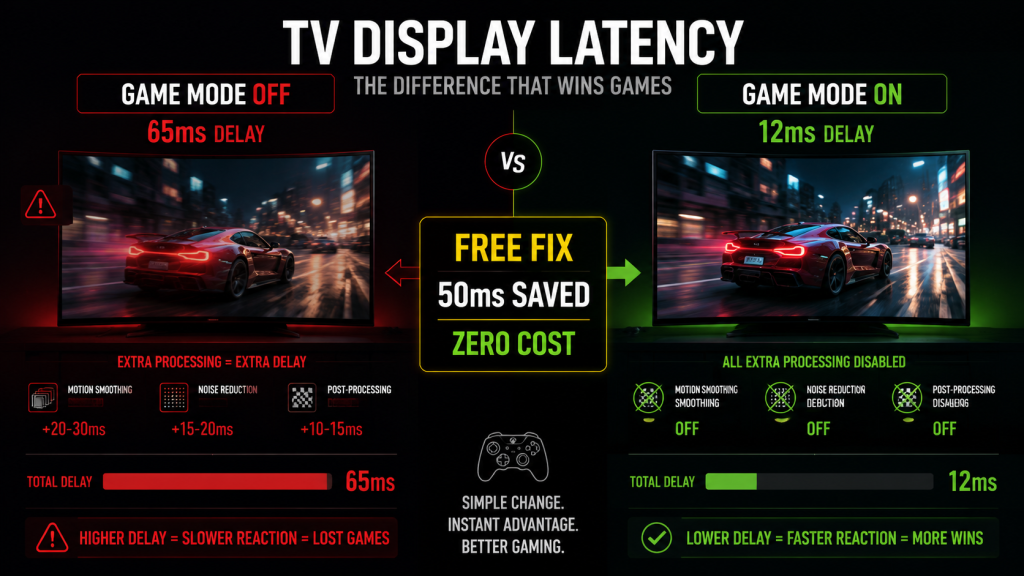
Your TV or monitor adds its own latency. A modern gaming monitor in its standard mode adds 4ms to 8ms. A TV without Game Mode, in contrast, adds 30ms to 80ms. That is the single largest source of unnecessary input lag in most living room cloud gaming setups, and it costs zero dollars to fix.
Turn on Game Mode. Here is how: Samsung TVs: Settings → General → Game Mode → On. For LG TVs: Settings → Picture → Game Optimizer → On. If you have another brand, search the picture settings for “Game Mode.” This disables motion smoothing, noise reduction, and other post-processing that adds delay. The improvement is typically 20ms to 50ms. For cloud gaming, that is the difference between unplayable and fine.
How to Test Your Cloud Gaming Latency
Before you change anything, measure your baseline. Here are three ways, from simplest to most precise.
GeForce NOW Built-in Stats
Press Ctrl+N (or Cmd+N on Mac) during a GeForce NOW session. An overlay shows your current ping, packet loss, and stream resolution. The ping number is your network latency to the server. Add roughly 8ms to 15ms for controller and decode latency to estimate total input lag.
Xbox Cloud Gaming Stats
Xbox Cloud Gaming does not have a built-in stats overlay. Use the Xbox app on Windows and enable the performance overlay from the Xbox Game Bar (Win+G → Performance widget). Alternatively, stream through a browser and use the browser’s developer tools network tab to check ping to the streaming server.
Manual Stopwatch Test
The low-tech method: find a game with a visible button-press animation (menu navigation works well). Record your screen and controller in the same slow-motion video at 240fps on a phone camera. Count the frames between button press and screen reaction. Each frame at 240fps equals roughly 4ms. This method is less precise than a network overlay but captures total end-to-end latency including your display.
8 Ways to Reduce Cloud Gaming Input Lag
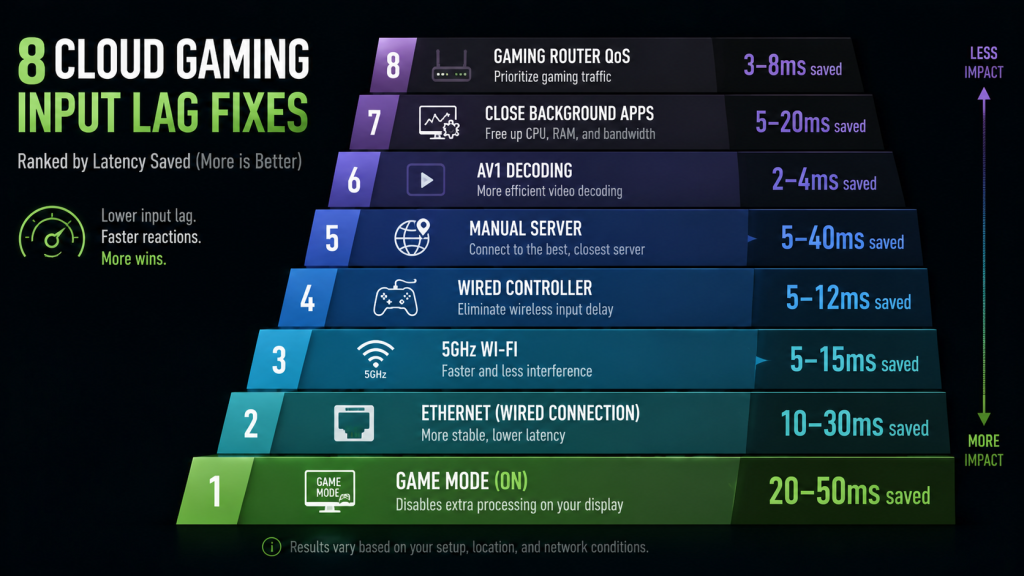
Here are the fixes, ranked first by how much latency they save and then by how hard they are to implement.
| # | Fix | Latency Saved | Difficulty |
|---|---|---|---|
| 1 | Enable Game Mode on TV/monitor | 20-50ms | Free, 1 setting |
| 2 | Use Ethernet instead of 2.4GHz Wi-Fi | 10-30ms | Cable cost |
| 3 | Switch to 5GHz Wi-Fi (if Ethernet not possible) | 5-15ms | Free |
| 4 | Use wired or 2.4GHz controller, not Bluetooth | 5-12ms | Cable or dongle |
| 5 | Select the closest server manually | 5-40ms | Free |
| 6 | Upgrade to a device with AV1 decoding | 2-4ms | New device cost |
| 7 | Close background downloads and streams | 5-20ms | Free |
| 8 | Upgrade to a gaming router with QoS | 3-8ms | $80-$150 |
1. Enable Game Mode (Highest Impact, Zero Cost)
We covered this above. It is the single biggest win and costs nothing. Do this first.
2. Use Ethernet
Wi-Fi adds jitter. Jitter is variation in latency. A 5ms ping spike during a gunfight loses the gunfight. Ethernet eliminates Wi-Fi jitter entirely. The latency improvement is 10ms to 30ms on average compared to 2.4GHz Wi-Fi, with packet loss reduced to near zero. So even a $15 USB-C Ethernet adapter for a streaming stick is worth it. Our cloud gaming data usage guide includes more detail on wired vs wireless performance.
3. Switch to 5GHz Wi-Fi
If Ethernet is not an option (router in another room, rental apartment, no Ethernet port on device), at minimum use 5GHz Wi-Fi instead of 2.4GHz. 5GHz has less range but far less interference from neighboring networks, Bluetooth devices, and microwave ovens. As a result, the latency improvement is 5ms to 15ms in most homes.
4. Ditch Bluetooth for Your Controller
A wired USB connection adds roughly 1ms of controller latency. A 2.4GHz dongle adds 2ms to 5ms. Bluetooth 5.3 adds 5ms to 10ms. Bluetooth 4.2 adds 12ms to 18ms. So the jump from Bluetooth 4.2 to wired saves roughly 15ms. Combined with Ethernet, that is a 25ms to 45ms reduction from a typical living room setup. In competitive terms specifically, that moves you from unplayable to playable.
5. Select the Closest Server
GeForce NOW and Boosteroid let you manually select a server region. The auto setting sometimes picks a farther server. Go into settings, run the network test, and pin the server with the lowest ping. In fact, a manual server switch can save 10ms to 40ms if the auto-select was routing you to a distant data center.
6. Upgrade to a Device With AV1 Decoding
AV1 is a newer video codec that decodes faster than H.265 at the same quality. Devices with AV1 hardware decoding (Google TV Streamer, NVIDIA Shield TV Pro, recent mini PCs, Samsung and LG TVs from 2024 onward) save 2ms to 4ms per frame decode. It is a small gain on its own but worth knowing if you are buying a new streaming device anyway. Every 4ms matters when you are chasing sub-40ms total for competitive shooters.
7. Close Background Downloads
Steam downloading an update in the background, someone streaming Netflix in 4K on the same network, a phone syncing photos to iCloud — each one adds latency spikes. Before a cloud gaming session, pause downloads and ask household members to pause streams during competitive matches. The saved latency varies but can reach 20ms or more during heavy network activity.
8. Upgrade to a Gaming Router With QoS
Quality of Service (QoS) on a gaming router prioritizes gaming traffic over other network activity. When another device on the network starts streaming video, QoS ensures your cloud gaming packets go to the front of the line. The improvement is 3ms to 8ms in a busy household. So it is worth it if you share your network with multiple people. If you live alone, however, skip this one.
Best Cloud Gaming Services by Latency
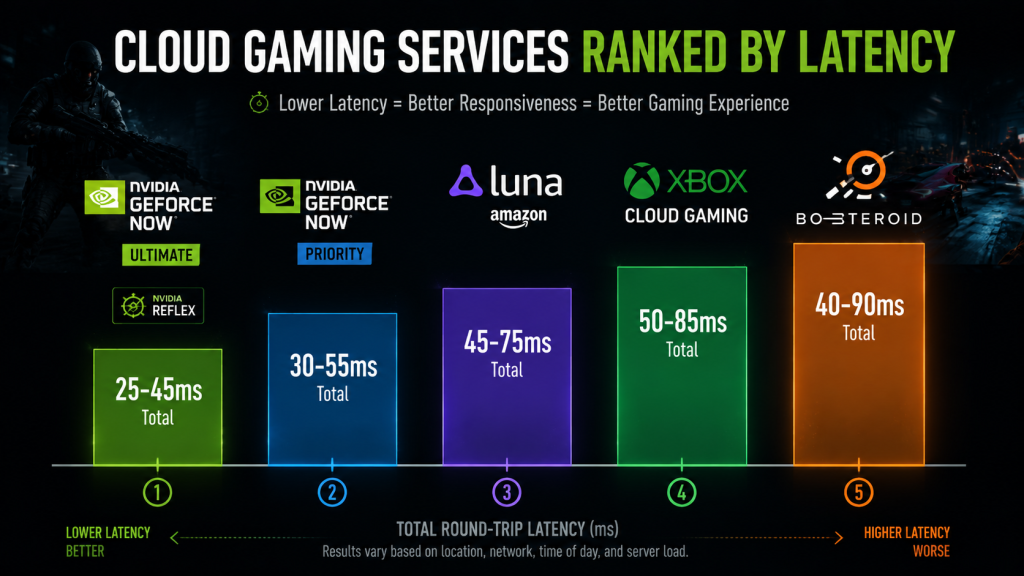
Not all services are equal on latency. Here is how the five major cloud gaming services compare in real-world testing conditions.
| Service | Typical Ping (Nearby Server) | Total Latency Estimate | Reflex/Low-Latency Mode |
|---|---|---|---|
| GeForce NOW Ultimate | 5-20ms | 25-45ms | NVIDIA Reflex ✅ |
| GeForce NOW Free/Priority | 5-25ms | 30-55ms | No Reflex |
| Xbox Cloud Gaming | 10-40ms | 50-85ms | No |
| Amazon Luna | 10-35ms | 45-75ms | No |
| Boosteroid | 10-50ms | 40-90ms | No |
GeForce NOW Ultimate with Reflex enabled has the lowest total latency of any cloud gaming service. Reflex reduces the render-and-encode pipeline inside NVIDIA’s servers, cutting roughly 8ms to 15ms from total latency compared to the Priority tier. For competitive shooters specifically, that 15ms is the reason to pay for Ultimate over Priority.
Xbox Cloud Gaming does not publish latency numbers and has no low-latency mode. The experience is good for single-player and casual multiplayer. It is not built for ranked shooters or fighting games.
For a full breakdown of how these services compare on game library, resolution, and price, see our cloud gaming platform comparison.
FAQ
What is a good ping for cloud gaming?
Under 30ms to the server is ideal. Under 50ms is good. Over 80ms, however, is where most players start noticing the delay. Ping to the server is only part of total input lag. You still need to add roughly 10ms to 20ms for controller and decode latency on top of your ping.
Can cloud gaming input lag be eliminated completely?
No. Every cloud gaming setup adds latency compared to local hardware. Physics prevents it. After all, light travels roughly 200km per millisecond through fiber, and data centers are rarely in your city. The goal is to get total latency under 50ms, where most players stop noticing it.
Is Ethernet really worth it for cloud gaming?
Yes, for competitive games. Ethernet saves 10ms to 30ms compared to 2.4GHz Wi-Fi and eliminates jitter (sudden latency spikes). For single-player games, 5GHz Wi-Fi is sufficient. For ranked shooters, however, plug in.
Does Bluetooth cause input lag?
Yes. Bluetooth 5.3 adds roughly 5ms to 10ms. Bluetooth 4.2 adds 12ms to 18ms. A wired controller, by comparison, adds roughly 1ms. In a competitive context, the 10ms to 15ms gap between Bluetooth and wired is real and affects outcomes. For single-player, stick with Bluetooth for the convenience.
Which cloud gaming service has the lowest latency?
GeForce NOW Ultimate with NVIDIA Reflex enabled. Typical total latency is 25ms to 45ms with a nearby server, wired connection, and wired controller. Reflex alone, in fact, cuts 8ms to 15ms from the render pipeline.
Does Game Mode on my TV actually help?
Massively. Most TVs add 30ms to 80ms of display latency with motion smoothing turned on. Game Mode disables that processing and brings display latency down to 5ms to 15ms. In short, it is the single biggest latency fix, it costs nothing, and most cloud gaming users never turn it on.
Can I play competitive shooters on cloud gaming?
GeForce NOW Ultimate with Reflex, a wired connection, a wired controller, and Game Mode enabled can hit 25ms to 40ms total latency. That is competitive with a 60Hz console setup. Xbox Cloud Gaming, on the other hand, is not suitable for competitive shooters. Its latency floor is around 50ms to 60ms, which is too high for ranked play.
Does moving closer to the router help?
It helps if you are on Wi-Fi and the signal is weak. A weak Wi-Fi signal causes packet loss and retransmission, which adds latency spikes measured in tens of milliseconds. Moving your streaming device within 5 to 10 meters of the router improves signal strength. If you are already on Ethernet, however, it does nothing, since Ethernet signal quality does not degrade with distance inside a home.
Conclusion: Get the Cheap Wins First
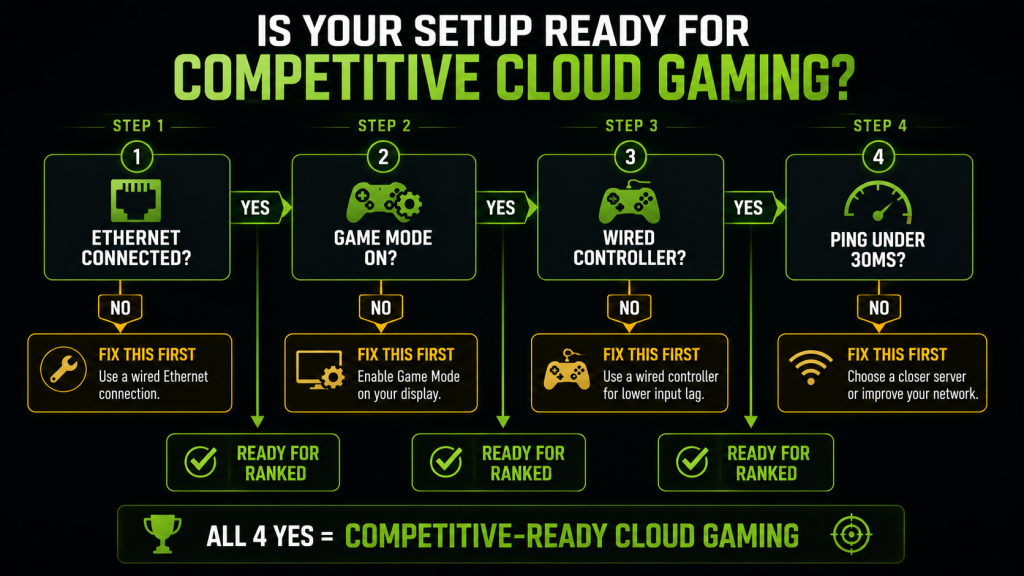
Reducing cloud gaming input lag is not about spending money. The two biggest fixes cost nothing: turn on Game Mode and switch to 5GHz Wi-Fi. Together they save 25ms to 65ms. That is more than upgrading to a $500 mini PC or a $180 gaming router.
After those two, plug in Ethernet if you can. Next, use a wired controller if you play shooters or fighters. Then, finally, worry about AV1 decoding, gaming routers, and server selection. The expensive fixes deliver the smallest gains.
Next: check how much internet speed you actually need and which controller has the lowest wireless latency.